Work Schedule Guide
Technician overview · quick help
Using your Work Schedule
This page explains how to choose your team, save it as the default on your device, view your individual schedule, and enter Vacation, Training, PTO, Sick, School, or another day off.
Set “This is me” once
When you open your individual technician schedule, tap This is me on this device. Work Schedule will remember your name on that browser/PWA so My Schedule and My Time Off can take you straight to your information.
This selection is self-declared, not identity-verified, because the technician login and PIN are shared. You can change or remove the selected technician from More → This device.
For product improvement, Work Schedule may record the technician you self-select for this device, general device/browser type, and which schedules/features are used. It does not track precise location and does not use the device selection as proof of identity.
This is a convenience calendar, not an official approval system
Work Schedule is an independent convenience tool. It is not an official scheduling, HR, payroll, leave-request, or leave-approval system. It is not operated, sponsored, endorsed, or maintained by Group 1 Automotive, South Pointe Chevrolet, or any employer.
Any Vacation, Training, PTO, Sick, School, or Other Off entry added here must still be requested and approved through your employer's normal process. Adding an entry to this calendar does not mean your time off has been approved.
You must acknowledge this before the technician schedule unlocks. If your device is set to stay signed in, you will see it again the next time a new sign-in is required.
You must acknowledge again that the calendar entry does not replace your employer's normal request and approval process.
Choose your team and make it your default
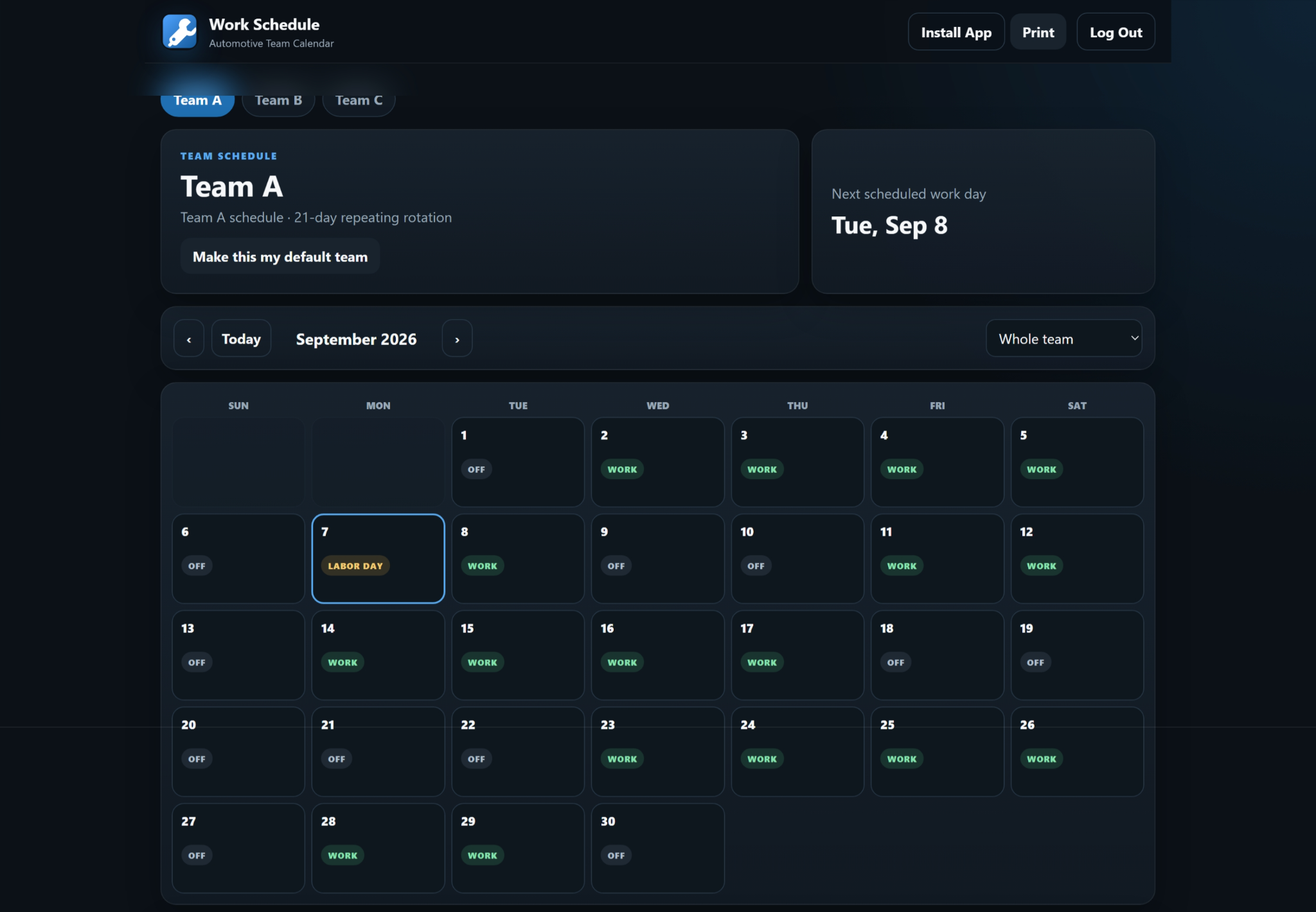
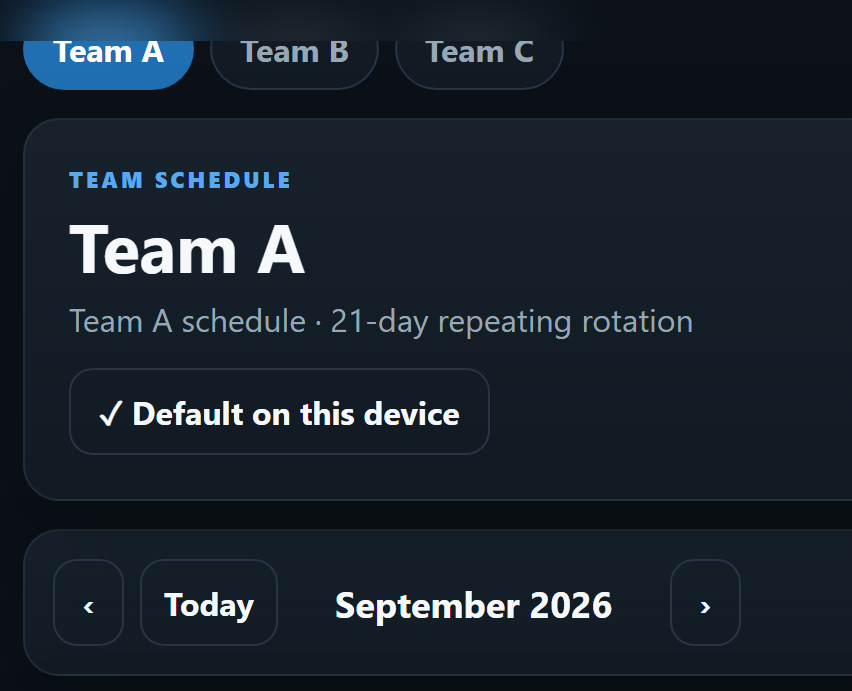
Select your team at the top of the schedule. Once the correct team is open, click Make this my default team.
Open your individual technician schedule
On desktop, use the technician dropdown above the calendar or click your name in the team roster. On mobile, you can tap your name in the roster or use More → My Time Off and choose your name.
Your individual schedule applies the normal team rotation plus any personal Vacation, Training, PTO, Sick, School, or other exceptions.
Add Vacation / Training / days off on a computer
The desktop version now has a My Time Off button in the top toolbar.
- Click My Time Off.
- Choose your name.
- Select the start date and end date.
- Choose Vacation, Training, PTO, School, Sick, or Other Off.
- Enter your technician PIN and an optional note.
- Check the required acknowledgment confirming that this calendar entry is not an approval of time off.
- Click Add to Calendar.
Add days off from your phone
On Android or iPhone/iPad, use the technician PWA's bottom menu:
- Tap More.
- Under My Time Off, tap Choose my name if you are still viewing the whole team.
- Choose your name.
- Tap Vacation, Training, PTO, School, Sick, or Other Off—or open the full form.
- Choose your date(s), enter your PIN, add an optional note, check the required acknowledgment, and tap Add to Calendar.
What you will enter
Your technician PIN protects your schedule changes. Before an entry can be added, you must also check the acknowledgment that the entry is only being placed on this convenience calendar and still requires approval through your employer's normal process. If you do not see self-service or your PIN does not work, the schedule administrator may need to enable Tech can add own days off or set/reset your technician PIN.
Where your day off appears
Once saved, the entry is visible in all of the places that need it:
- Your individual technician calendar.
- The whole-team calendar, with your name and the reason shown on that date.
- The Advisor / Manager calendar under Away / Exception.
This helps the whole shop see staffing changes without changing the team's normal repeating rotation.
Remove a self-entered day off
Open your individual schedule and go to My Days Off. Enter your technician PIN and use Remove beside an entry you created.
Install Work Schedule
Android: open More → Install Work Schedule when available.
iPhone/iPad: open the page in Safari, tap Share, then choose Add to Home Screen.
Desktop: use Install App in the top toolbar when your browser supports PWA installation.
If something does not look right
If your team, rotation, name, PIN, Vacation/Training option, or holiday appears incorrect, contact the Work Schedule administrator. Technicians can place their own time-away entries on this convenience calendar, but those entries do not constitute employer approval. Team setup, recurring rotations, mandatory holidays, and self-service permissions are controlled by Admin.